

Getting the Container Playground
The Container Playground image is hosted on the same container registry as our main container. If you already have a customer portal account with us and have a license to deploy Limina’s containers locally, then you can use the Docker credentials that are present in the portal to gain access to the Limina Container Playground image.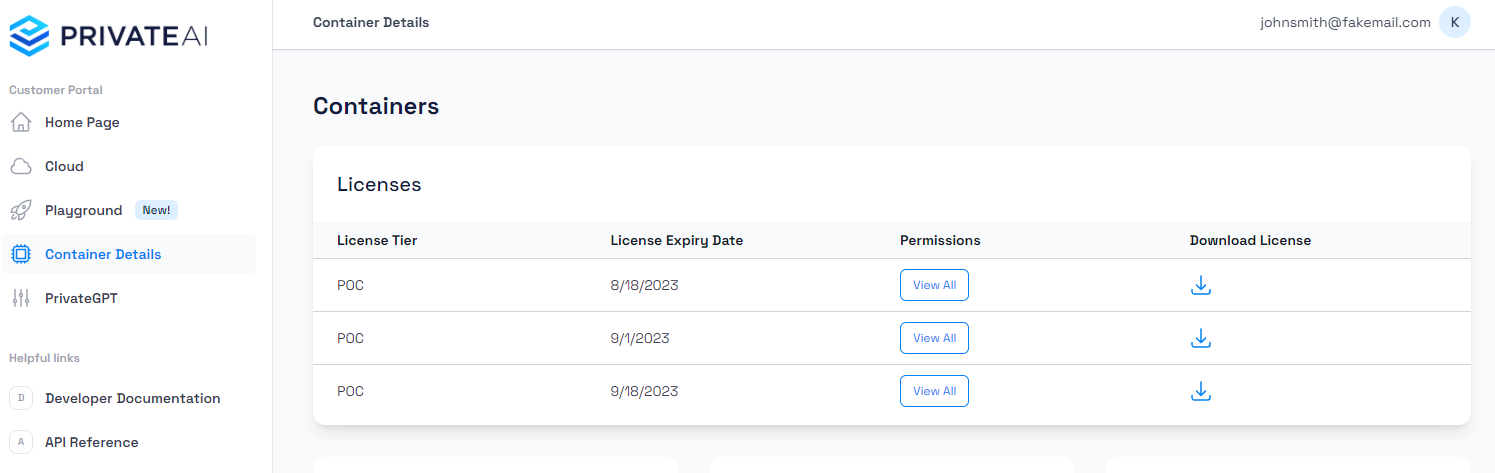
Docker Command
Docker Command
Setting up the Container Playground
There are various different ways to setup the Container Playground image. However, we will be focusing on 2 main ones in the guide. These 2 ways are:- Setting up the Container Playground as a standalone app
- Setting up the Container Playground together with the Limina container
1. Setting up the Container Playground as a standalone app
This setup covers the cases where the main container is already deployed separately or the plan is to deploy the Container Playground and the Limina container separately for better scalability.Container Playground running together with the main container on the same machine
In this case, we are assuming that the Container Playground will be running on the same machine as the Limina container. Currently, this configuration is the default one, so you can just simply start up the container with the following command:Docker Command
http://localhost:3000 address.
This setup assumes that the Limina container is running and accessible at the http://localhost:8080 address.
Container Playground running on a different machine
In this case, we are assuming that there is a Limina container deployed somewhere and the Container Playground is being set up separately to interact with it. First, if the Limina container endpoints are not protected (i.e. no authentication required), then you can simply use the following command to set up the Container Playground:Docker Command
Docker Command
Docker Command
2. Setting up the Container Playground together with the Limina container
This setup covers the use case where the Container Playground is setup / deployed together with the Limina container on the same machine. It assumes thatdocker compose is used for this setup.
In this case, the most important point is to correctly set up the communication between the Container Playground and the Limina container. Following is an example compose.yml file that demonstrates how to achieve this:
Yaml
localhost, we are passing the name of the container (i.e. deid), which is an important step to make sure that both containers can communicate.
Configuration Options
Currently, the Container Playground application can be configured using the following environment variables:Container Playground - Text Processing with Automatic Updates
If you wish to automatically redact text as you type, you can enable the “Auto Update Mode”. This only applies to the text redaction component on the Container Playground. You can do so by adding theauto=true query parameter at the end of the browser URL. Here is an example:
URL